0123456 minute read
Control your TV/Home Cinema using Siri and Logitech Harmony.
Home Cinema
Will Beeching
---
title: Control your TV/Home Cinema using Siri and Logitech Harmony — Machine-readable
source_page: https://willbeeching.com/control-your-tv-home-cinema-using-siri/
canonical: https://willbeeching.com/control-your-tv-home-cinema-using-siri/
format: text/markdown
last_updated: 2025-11-08
description: Explore voice control integration for home cinema systems using Harmony and Homebridge, enabling seamless operation through HomeKit despite native limitations.
---
**Quick links:** [Human page](https://willbeeching.com/control-your-tv-home-cinema-using-siri/) · [Home](https://willbeeching.com) · [Blog](https://willbeeching.com/blog)
---
# Control your TV/Home Cinema using Siri and Logitech Harmony — Machine Version
**Categories:** Home Cinema
---
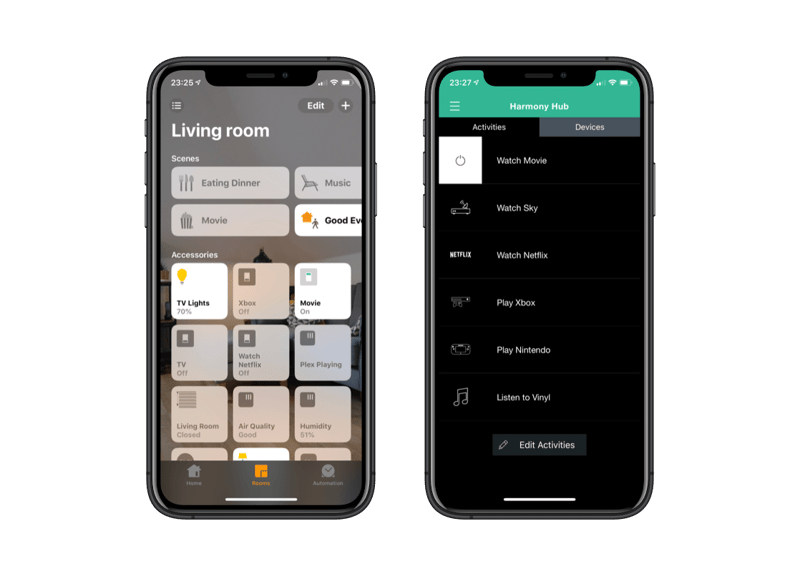
## Voice-controlling your home cinema If you’re like me and have a keen interest in both home cinema and home automation – you may want to be able to control your devices using your voice. Unfortunately, there’s no native option for this in the HomeKit ecosystem so we’ll be looking at some workaround options here. A while back I managed to grab a [Harmony Elite](https://amzn.to/2SAjk74) on Prime Day. This is a great device in itself that allows you to control all your home cinema devices through one remote. ## Connecting Harmony to HomeKit with Homebridge Luckily we also have a Homebridge plugin that connects Harmony to your HomeKit system. Let’s get started. We’re relying on using Homebridge so if you haven’t got this set up, follow my guide [here](/getting-started-with-homebridge/). First, we’re going to install the homebridge plugin. Note that this is a relatively [new plugin by Nicolas Dujardin](https://github.com/nicoduj/homebridge-harmony) that uses web sockets, the [previous plugin](https://github.com/materik/homebridge-harmonyhub) that I was using was broken recently due to Logitech closing access to private local API controls. *I digress.* `npm install -g homebridge-harmony` Now we’re going to want to add the configuration to our HomeKit config file, if you followed my guide that will be located in ‘/var/homebridge/config.json’. You’ll need to add the following:
```text
"platforms":[
   {
      "platform":"HarmonyHubWebSocket",
      "name":"HarmonyHub (Your Hub Name)",
      "hubIP":"YOUR.HUB.IP.ADDRESS",
      "showTurnOffActivity":true,
      "refreshTimer":30,
      "skipedIfSameStateActivities":[
         "PowerOff"
      ]
   }
]
```
All we need to do now is restart homebridge `sudo service homebridge restart` Head over to your Home app, and you should see your Harmony activities in your default room, or the room that your Homebridge hub is allocated to. These are now switches that you can turn off and on either via the Home app or using Siri. If you have a HomePod this works brilliantly. ## Creating and using activities Here’s a couple of example activities that I have: **Movie** - Turn on TV - Turn on AVR and set input to Bluray - Turn on nVidia Shield **Netflix** - Turn on TV - Turn on AVR and set input to Media Player - Turn on Apple TV **TV** - Turn on TV - Turn on AVR and set input to Satellite - Turn on Sky Q ## Expanding what you can control You can even create activities to tune in to certain channels. So if you had an activity that tuned in to BBC 1, you could also use Siri to do this. There are so many possibilities to this action, Harmony can control Philips Hue so you can dim your lights using this. Personally I prefer to keep all my automation related actions within the Home app, as I also have IKEA Tradfri bulbs around the house to control too. Voila