012345678 minute read
Getting started with Homebridge.
Home Automation
Will Beeching
---
title: Getting started with Homebridge — Machine-readable
source_page: https://willbeeching.com/getting-started-with-homebridge/
canonical: https://willbeeching.com/getting-started-with-homebridge/
format: text/markdown
last_updated: 2025-11-08
description: Explore how Homebridge integrates non-HomeKit devices into the Apple HomeKit ecosystem, offering cost-effective solutions for smart home enthusiasts.
---
**Quick links:** [Human page](https://willbeeching.com/getting-started-with-homebridge/) · [Home](https://willbeeching.com) · [Blog](https://willbeeching.com/blog)
---
# Getting started with Homebridge — Machine Version
**Categories:** Home Automation
---
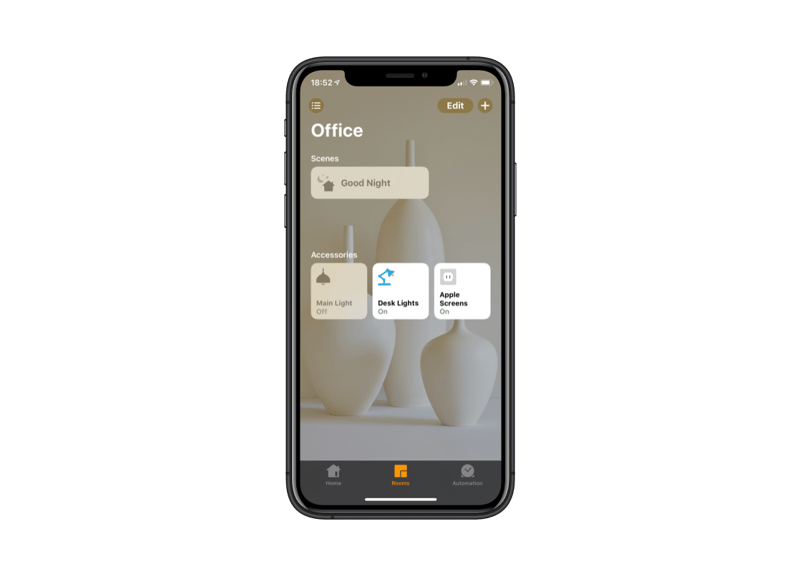
Many of us are so deeply consumed by the Apple HomeKit ecosystem that it ends up costing us more to make other parts of homes smart as the HomeKit versions are vastly more expensive than non HomeKit certified versions. There are also devices that are smart, but just aren’t HomeKit supported. Fortunately, there’s Homebridge, Homebridge is an app that allows you to run non-HomeKit devices within your HomeKit ecosystem, through the Apple Home app. ## A quick example Problem: I want to use a smart switch to turn a device on and off Solutions. There are lots of good solutions out there. However only a few are HomeKit compatible. - Eve Power — £44.95 - TP-Link HS100 — £36.74 [Hive Active Smart Plug](https://www.amazon.co.uk/gp/product/B01N7L53TB/ref=as_li_tl?ie=UTF8&tag=besttelescope-21&camp=1634&creative=6738&linkCode=as2&creativeASIN=B01N7L53TB&linkId=44f35cb171b0bcc35e68d1f64a79f186) — £35.99 (Prices correct as of 15/10/18) Eve is the obvious choice if you just want out of the box HomeKit compatibility and no faff. However, it is £10 more expensive than the competitors and there are also no multiple discounts should you buy more than one. So I searched around on the Homebridge repos and found that a plugin for TP Link had been made. This allows me to control those plugs through HomeKit. Depending on how many plugs you want to turn smart, this can end up saving you a lot of money. ### Installing Homebridge Things that you’ll need: - Raspberry Pi 3 - Raspberry Pi Charger - Raspberry Pi Case (Optional) - USB Keyboard/Mouse - HDMI TV/Monitor - Patience (Mandatory) If you have a computer or NAS that is on permanently in your home it may be worth considering installing Homebridge on that, however I prefer to keep my installation separate and RPi’s use hardly any electricity compared to a computer. Most Pi’s come pre-installed with NOOBS (New Out Of Box Software) If yours hasn’t, follow [the instructions here](https://www.raspberrypi.org/documentation/installation/noobs.md). We’re going to want to ssh into our Pi. We can do that by opening Terminal or CMD. `ssh pi@raspberrypi.local` Note that in SSH is disabled by default in recent version of Raspbian; [see this page for instructions to re-enable it](https://www.raspberrypi.org/blog/a-security-update-for-raspbian-pixel/). Let’s get everything in order and updated: sudo apt-get update sudo apt-get upgrade Next, we’re going to install Node.js, this is what Homebridge runs on. curl -sL https://deb.nodesource.com/setup_8.x Installing|Installing Homebridge `sudo npm install -g --unsafe-perm homebridge` You may need to use the –unsafe-perm flag if you receive an error similar to this: `gyp WARN EACCES user "root" does not have permission to access the dev dir "/root/.node-gyp/5.5.0"` Now you should be able to run Homebridge: $ homebridge No plugins found. See the README for information on installing plugins. Homebridge will complain if you don’t have any Plugins installed, since it will essentially be useless, although you can still “pair” with it. See the next section “Installing Plugins” for more info. Once you’ve installed a Plugin or two, you can run Homebridge again: $ homebridge Couldn't find a config.json file [snip] Homebridge won’t run until we’ve added a config file, so we can create a new one in your homebridge folder, likely to be: ~/.homebridge/config.json
```text
{
   "bridge":{
      "name":"Homebridge",
      "username":"CC:22:3D:E3:CE:30",
      "port":51826,
      "pin":"031-45-154"
   },
   "description":"This is an example configuration file with one fake accessory and one fake platform. You can use this as a template for creating your own configuration file containing devices you actually own.",
   "accessories":[
      {
         "accessory":"WeMo",
         "name":"Coffee Maker"
      }
   ],
   "platforms":[
      {
         "platform":"PhilipsHue",
         "name":"Hue"
      }
   ]
}
```
When editing this make sure you use a plain text (code) editor. Something like Sublime Text or Atom. ## Running Homebridge on Bootup (systemd) We now want Homebridge to run on boot should the Pi get shut down or restarted. To do this we have to turn it into a system service. `sudo nano /etc/default/homebridge` Then paste [this](https://gist.githubusercontent.com/johannrichard/0ad0de1feb6adb9eb61a/raw/7defd3836f4fbe2b98ea5a9749c4413d024e9623/homebridge) `sudo nano /etc/systemd/system/homebridge.service` Then paste [this](https://gist.githubusercontent.com/johannrichard/0ad0de1feb6adb9eb61a/raw/7defd3836f4fbe2b98ea5a9749c4413d024e9623/homebridge.service) Let’s create a user to run the service as `sudo useradd --system homebridge` Now we’ll create a new location for Homebridge `sudo mkdir /var/homebridge` Now we’ll copy the Homebridge installation to the folder `sudo cp ~/.homebridge/config.json /var/homebridge/` `sudo cp -r ~/.homebridge/persist /var/homebridge` `sudo chmod -R 0777 /var/homebridge` Now we’ll enable and run the service that we just created systemctl daemon-reload systemctl enable homebridge systemctl start homebridge We can now check that it’s all running okay `systemctl status homebridge` If you need to view logs: `journalctl -f -u homebridge` ## Adding your Homebridge to Apple Home Open the Apple Home app on your iOS device and click add, and then add new accessory up the top right. HomeKit will then scan for new devices. If you run: `systemctl status homebridge` Then scroll up you should see a QR code which you can scan with your phone if it hasn’t found your Homebridge device already. It may ask for a pin which is: `031-45-154` All done! Your Homebridge hub should now show up in your Home app ## We might as well finish our smart plug example Let’s install the TP-Link plugin `npm install -g homebridge-tplink-smarthome` Let’s navigate to our config.json file using out FTP client and then edit. Under platforms we want to add this code: "platforms": [{ "platform": "TplinkSmarthome", "name": "TplinkSmarthome" }] Save the file. Now we need to restart Homebridge `service homebridge restart` Check that everything has run okay! `systemctl status homebridge` Now go to the Home app on your iOS device and check the room that your Homebridge is present in, you should now see whichever TP Link devices are connected to your network.